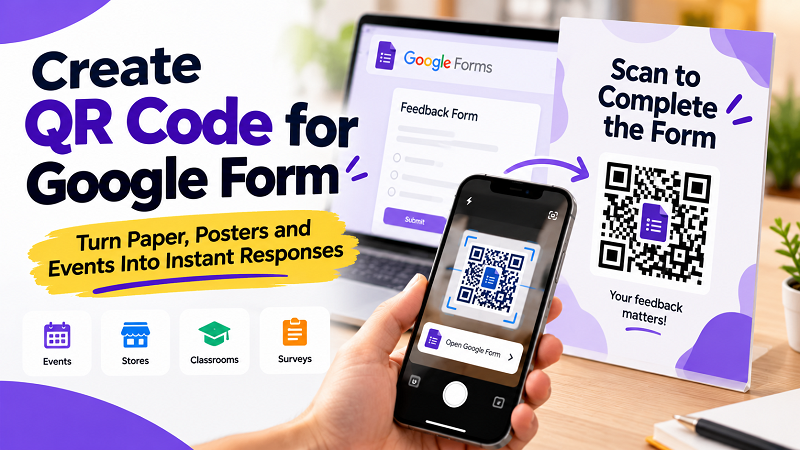
A Google Form can be perfectly designed and still struggle to get responses. The problem often has nothing to do with the questions themselves. It’s the journey between seeing the form and actually opening it. Someone at an event may notice a feedback poster but have no interest in typing a URL. A customer might want to leave a review but decide it can wait. A student may be willing to answer a quick survey but not interested in searching for a form on their phone. When the form starts in the physical world, every extra step creates friction. A QR code can remove much of that friction by giving people a direct path from a printed page, sign, screen, or display to the form on their phone.
- The Gap Between Having a Form and Getting Responses
- Where a Google Form QR Code Can Remove Friction
- Fix the Google Form Before You Create the QR Code
- Create QR Code for Google Form in a Few Steps
- Don't Make People Guess What the QR Code Does
- Put the QR Code Where the Action Happens
- Make the Scan Feel Worthwhile
- Test the Printed Version, Not Just the Digital One
- What Happens If the Google Form Changes Later?
- Turn Offline Attention Into an Online Response
The Gap Between Having a Form and Getting Responses
Creating a Google Form is easy. Getting people to actually complete it is a different challenge. This becomes especially obvious when the audience isn't already sitting in front of a computer. If someone sees a poster asking for feedback, for example, they shouldn't have to remember a website address, type it into their browser, or search through an old message to find the form. The easier the first step is, the more natural it feels to continue. A QR code doesn't make a form more interesting, but it can make the path to that form much shorter.
That distinction is worth remembering. If your form has poor questions, takes ten minutes to complete, or asks for information people don't want to provide, adding a QR code won't magically fix it. The QR code solves an access problem. The form itself still has to deliver a good experience.
Where a Google Form QR Code Can Remove Friction
The most useful applications tend to be situations where people are already physically present and have a reason to respond. An event organizer can place one near the exit and ask attendees to complete a quick feedback form. A store can put one near the checkout counter for customer comments. A restaurant can use one for feedback after a meal. Teachers can display one on a classroom screen or printed worksheet when they need quick responses from students. Businesses can use QR codes on posters, product displays, surveys, registration sheets, or promotional materials. In each case, the QR code acts as a bridge between something people can see in front of them and an action that normally happens online.
Fix the Google Form Before You Create the QR Code
This step is easy to skip because generating the QR code feels like the exciting part. It shouldn't be. Before turning your form URL into a QR code, open the form from a regular phone and experience it as a respondent. Check whether the form opens without unnecessary restrictions, whether users can understand the first question immediately, and whether the number of questions matches the promise you've made on the poster or sign. If your message says “Take our 30-second survey” but the form takes five minutes, the QR code isn't the problem. The expectation is.
Also check the sharing and response settings. A QR code can only take people to the destination you've encoded, so make sure that destination is accessible to the audience you're targeting. Testing the form before printing the QR code is one of those boring little jobs that can save a lot of frustration later.
Create QR Code for Google Form in a Few Steps
Once the form is ready, the process is straightforward. Open your Google Form, copy the URL that respondents should use, paste that URL into a QR code generator, and generate the code. Scan it with your phone and confirm that it opens the correct form. If you need to create QR code for Google Form, LinkToQR can turn the form URL into a scannable QR code that you can download and use on digital or printed materials.
The important thing here is to use the respondent-facing form URL, not a private editing link. You want people to see the form as a participant, not land on the page where you manage questions and responses. It sounds obvious, but checking this before printing hundreds of copies is considerably easier than fixing it afterward.
Don't Make People Guess What the QR Code Does
A QR code on its own doesn't explain why someone should scan it. Give it a short instruction that connects the scan with a clear benefit. “Scan to share your feedback” works for a customer survey. “Scan to register” makes sense for an event. “Scan to complete today's survey” gives students immediate context. The exact wording depends on the situation, but the principle is universal: don't make the audience decode the purpose of the QR code.
This is particularly important for printed materials. When someone walks past a poster, they may only give it a second or two of attention. A clear headline plus a simple call to action can communicate the entire experience before they even take out their phone.
Put the QR Code Where the Action Happens
Placement matters more than many people realize. A QR code asking for event feedback makes more sense near the exit than hidden on a registration poster from three hours earlier. A restaurant feedback code belongs somewhere customers naturally look after their meal. A classroom survey code should appear when the teacher is actually asking students to respond. A store feedback code should be visible at a point where customers have already interacted with the business.
The best location is usually not the most visually impressive one. It's the location where the user already has the motivation to take the next step. Think about the physical journey first, then decide where the QR code belongs.
Make the Scan Feel Worthwhile
People are more willing to scan when the request feels small and the outcome is clear. “Complete our survey” sounds like work. “Share your feedback in 30 seconds” feels much lighter. “Register here” is more direct than “Scan this QR code.” The QR code itself doesn't need to do the selling. The surrounding message should make the action feel quick, relevant, and worthwhile.
This is also where honesty matters. If the form genuinely takes two minutes, don't advertise it as a 20-second form. A QR code may get someone through the door, but a misleading promise can damage the experience once they arrive.
Test the Printed Version, Not Just the Digital One
A QR code can work perfectly on your computer and still become annoying when printed. Size, contrast, surrounding graphics, paper quality, viewing distance, and lighting can all affect how easily a phone recognizes the code. Before sending a poster, flyer, menu, sign, or handout to print, test a physical sample if possible. Scan it from the distance people are likely to use, rather than holding the phone two inches away because that's the easiest test.
It's also worth checking the form on different phones. You don't need a laboratory setup. A couple of real-world tests are usually enough to catch obvious problems such as a QR code that's too small, a destination that requires unexpected access, or a design that makes the code difficult to recognize.
What Happens If the Google Form Changes Later?
This is something to think about before using a QR code for a long-running campaign. A QR code created from a URL contains that URL. If the destination changes later, the original QR code doesn't automatically know what you intended to replace it with. That's why it's smart to decide whether the form URL is stable before printing the code across materials that will be difficult or expensive to replace.
For a one-day event, this may barely matter. For a poster that will remain on a wall for six months, it matters much more. Consider the expected lifespan of the printed material before committing to a design.
Turn Offline Attention Into an Online Response
A Google Form doesn't have to live exclusively behind a link in an email or chat message. With the right setup, a physical interaction can become the starting point for an online response in just a few seconds. Someone sees the poster, understands what they're being asked to do, scans the code, and the form opens on their phone. There is no need to remember a URL or promise yourself you'll come back to it later.
That's the real value of connecting a Google Form to a QR code. You're not changing what the form does. You're simply removing the unnecessary distance between the person and the form. And when you're trying to collect feedback, registrations, survey responses, or sign-ups, making that first step almost effortless can make the entire offline-to-online experience feel much more natural.