Sharing your LinkedIn profile does not always have to involve spelling out a long URL or asking someone to search for your name. A QR code can turn a LinkedIn URL into something people can scan with their phone and access in a few seconds. Whether you're networking at an event, updating your resume, printing a business card, or simply looking for a cleaner way to share your professional profile, a LinkedIn QR code can be a practical little shortcut.
With LinkToQR, you can create a QR code from a LinkedIn URL directly in your browser. The process is simple: copy the URL you want to share, paste it into the generator, create the QR code, and test it before putting it to use. No complicated QR-code setup required.
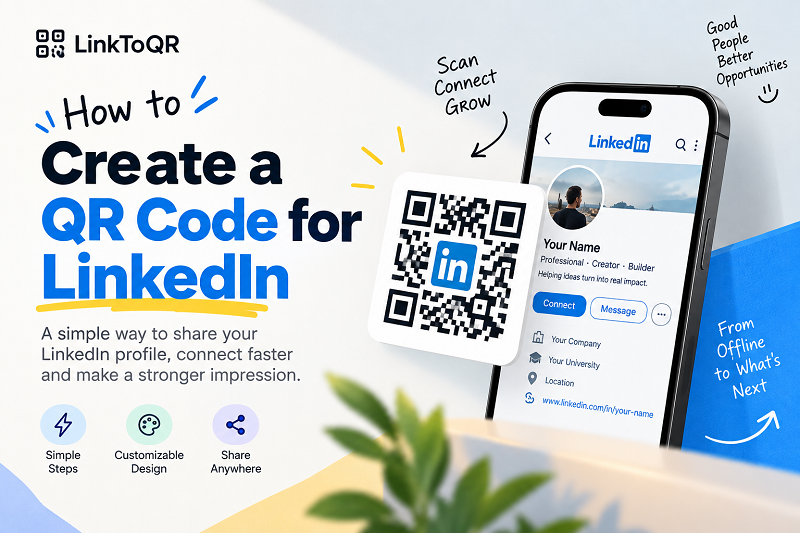
1. What Is a LinkedIn QR Code?
A LinkedIn QR code is a QR code that contains a URL pointing to a page on LinkedIn. When someone scans the code with a compatible smartphone camera or QR scanner, the device can process the encoded URL and open the corresponding destination.
For example, if your LinkedIn profile has a URL such as https://www.linkedin.com/in/your-name/, that URL can be converted into a QR code. Someone who scans the resulting code can then access the LinkedIn page associated with that address, subject to the availability and access requirements of the destination.
It is worth clearing up one small misconception: a QR code does not copy your entire LinkedIn profile into the square pattern. Think of it more like a shortcut sign. The QR code contains the data needed to point a scanner toward the URL you provided; the actual page and its content remain on the destination service.
2. When Should You Use a QR Code for LinkedIn?
The useful thing about a QR code is that it connects the offline world with a digital destination. That makes it particularly handy whenever someone is holding a piece of paper, looking at a presentation, or standing in front of a printed sign but needs to visit a LinkedIn page.
A LinkedIn profile QR code can be placed on a business card so that a new contact can scan it instead of manually typing your profile URL. It can also be included on a resume or portfolio when you want to provide an additional way for someone to access your professional profile. At conferences and networking events, a QR code can be displayed on a badge, printed material, presentation slide, or booth graphic.
The same idea works for other LinkedIn URLs as well. If the destination is a LinkedIn page that you are allowed to share, you can use its URL as the input for a QR code. The important part is not where you display the code, but making sure the URL behind it is correct and accessible to the people who are expected to scan it.
3. Before You Create Your LinkedIn QR Code
Before generating anything, take a few seconds to check the URL. It sounds almost too obvious, but this is one of those tiny steps that can save you from printing 500 business cards with a QR code pointing to the wrong page.
Open the LinkedIn URL you intend to share and make sure it leads to the correct profile or page. Copy the complete address from your browser and use that exact URL as the input. If you are preparing a QR code for a resume, business card, poster, or another printed item, also think about where the code will appear and how people will scan it. A QR code displayed on a large screen can behave very differently from one squeezed into a tiny corner of a business card.
It is also a good idea to consider who will scan the code. Depending on the destination and LinkedIn's own rules, some visitors may encounter sign-in requirements, privacy restrictions, or other access limitations. A QR code does not remove those restrictions; it simply provides another way to reach the URL.
4. How to Create a QR Code for LinkedIn
Creating a QR code for LinkedIn with LinkToQR is a straightforward process. You do not need to understand how QR encoding works behind the scenes. Just bring the URL, and the tool handles the QR generation.
Step 1: Copy Your LinkedIn URL
Open LinkedIn and navigate to the profile or page you want to share. Copy its URL from your browser's address bar. Take a moment to verify that it is the exact destination you want people to visit.
Step 2: Enter the URL Into the LinkToQR Tool
Open the LinkToQR LinkedIn QR code generator and paste the URL into the input field. The tool uses the URL you provide as the data for the QR code, so there is no need to manually enter complicated QR parameters.
Step 3: Generate Your QR Code
Start the generation process and let the tool create the QR code from your LinkedIn URL. In just a moment, the URL is represented as a scannable QR pattern.
Step 4: Scan and Test the QR Code
This step deserves more attention than it usually gets. Before putting the code on a resume, business card, poster, or presentation, scan it with a phone and confirm that it opens the intended LinkedIn URL. If the QR code is going to be printed, testing the actual version you plan to print is even better.
Step 5: Use Your QR Code
Once you've confirmed that everything works as expected, you can use the QR code in your chosen material. Keep the code large enough to scan comfortably, maintain good contrast with its background, and avoid placing graphics or text over the QR pattern.
That's the whole process. Copy the link, generate the code, give it a quick test, and you're ready to use it.
5. How a LinkedIn QR Code Works
At a basic level, the process looks like this:
LinkedIn URL → QR code → Smartphone scans the code → URL is processed → LinkedIn page opens
The QR code itself is not a miniature version of your LinkedIn profile. It is a machine-readable representation of data. When that data is a URL, a compatible device can recognize the address and offer to open it.
This distinction matters because the QR code and the destination are two different things. LinkToQR can generate the QR code from the URL you provide, but it does not control the LinkedIn page behind that URL. If the destination changes, becomes unavailable, requires authentication, or is subject to restrictions imposed by the destination service, those circumstances can affect what happens after someone scans the code.
6. Where Can You Use a LinkedIn QR Code?
There are plenty of places where a QR code makes sense, especially when people are moving between physical and digital environments. A business card is an obvious example: the QR code can sit alongside your name and contact details without forcing the card to become a wall of text.
Resumes and CVs are another practical use. If your LinkedIn profile contains additional professional information that you want to make available, a QR code can provide an optional route to the profile. Portfolios, conference badges, presentation slides, brochures, printed materials, and networking displays can work in much the same way.
The golden rule is simple: put the QR code somewhere people can see it, recognize what it is for, and comfortably scan it. A beautifully designed QR code hidden in a tiny corner is still a tiny QR code.
7. How to Make a LinkedIn QR Code Easy to Scan
QR codes are designed to be scanned, so readability should come before decoration. If you are creating a QR code for digital use, make sure it is displayed at a reasonable size. If you are printing it, remember that a QR code that looks perfectly clear on a large monitor may become much harder to scan after being reduced for a business card.
Contrast also matters. A clear difference between the QR code and its background makes it easier for cameras and scanning software to recognize the pattern. Leave sufficient empty space around the code rather than pushing text, borders, icons, or other design elements right against it.
If you customize the appearance of a QR code, test the finished design rather than assuming it will work because the original QR did. And if you're printing hundreds of copies, test a physical sample first. Your future self — and your printer — will appreciate it.
8. Common Mistakes When Creating a LinkedIn QR Code
One of the most common mistakes is using the wrong URL. A QR generator can successfully create a perfectly readable code from an incorrect address, which means the QR itself may not be broken at all. The problem is simply that it leads somewhere you did not intend.
Another mistake is skipping the testing step. Always scan the final QR code before distributing it, particularly when it will appear on something that cannot easily be changed after printing.
Making the code too small is another frequent problem. QR codes need enough visual information for a scanning device to recognize the pattern. Excessive decoration can cause similar issues, especially when important parts of the code are covered or the contrast becomes too weak.
Finally, remember that a QR code is not the same thing as the LinkedIn page it points to. Creating a QR code does not copy, host, modify, or guarantee the availability of the destination content. It simply provides a machine-readable way to represent the URL you supplied.
9. Legal and Trademark Information
LinkToQR is an independent third-party web service that provides QR code generation tools. LinkToQR is not LinkedIn, is not a LinkedIn-owned website, and does not represent LinkedIn as an agent, partner, or authorized service provider unless a separate relationship is expressly stated by the relevant parties.
The availability of a tool for creating a QR code from a LinkedIn URL does not mean that LinkedIn sponsors, endorses, certifies, or is otherwise affiliated with LinkToQR. References to LinkedIn on this page are descriptive and are intended only to identify the destination service or URL that a user may choose to encode into a QR code.
LinkedIn and related names, logos, and trademarks are the property of their respective owner(s). LinkToQR does not claim ownership of LinkedIn's trademarks, website, content, profiles, pages, or other intellectual property.
When a user enters a LinkedIn URL into LinkToQR, LinkToQR's role is limited to providing the technical functionality needed to generate a QR code from the information supplied by that user. LinkToQR does not own or control the LinkedIn destination, and does not represent the content of that destination as its own.
The content, availability, access requirements, privacy settings, account requirements, and other characteristics of a LinkedIn page are controlled by LinkedIn and/or the applicable account or content owner. LinkToQR does not guarantee that a particular LinkedIn URL will remain available, unchanged, publicly accessible, or compatible with the destination service in the future.
Users are responsible for the URLs they submit and for how they use the resulting QR codes. Users should have the necessary rights to share the URLs and should comply with applicable laws, intellectual property rights, privacy requirements, and the terms and policies that apply to the destination service. Creating a QR code does not grant the user additional permission to access, reproduce, distribute, or circumvent restrictions on any LinkedIn content or account.
A QR code should not be used to bypass authentication, privacy controls, security measures, account restrictions, or other access controls imposed by LinkedIn or another destination service. LinkToQR does not provide any additional access rights simply because a URL has been converted into a QR code.
For the full rules governing use of LinkToQR, users should also review the site's Terms of Service, Privacy Policy, and Acceptable Use Policy.
10. Does a LinkedIn QR Code Expire?
A QR code containing a direct LinkedIn URL does not inherently expire simply because time has passed. The QR pattern represents the data encoded when the code was generated.
However, that does not mean the destination is guaranteed to remain available forever. A LinkedIn URL may be changed, removed, restricted, redirected, or otherwise become unavailable depending on circumstances controlled by LinkedIn or the owner of the destination.
In other words, the QR code and the destination are separate things. The square pattern can remain the same while the URL behind it changes or stops being accessible.
For that reason, if a QR code is going to be used for a long period of time, it is sensible to test the destination periodically.
11. Why Use LinkToQR to Create a LinkedIn QR Code?
The idea behind LinkToQR is simple: take a URL and turn it into a QR code without making the process unnecessarily complicated. For a LinkedIn URL, that means you can copy the address, paste it into the tool, generate the QR code, and test it before using it.
There is no need to manually construct QR data or figure out the technical encoding yourself. The tool handles that part so you can focus on the thing that actually matters: making sure the QR code points to the right place and can be scanned in the situation where you plan to use it.
Whether that means a business card sitting in someone's wallet, a resume on a desk, or a presentation on a giant screen, a QR code is most useful when it simply works.