Google Forms is a convenient way to collect registrations, surveys, feedback, applications, and other types of information online. However, sharing a long form URL on printed materials or in a physical location is not always convenient. A QR code provides a simple way for people to access a Google Form using their phone: they scan the code, open the encoded link, and continue to the form in their browser.
Creating a QR code for a Google Form does not require changing the form itself. The process simply converts the form's shareable URL into a QR code that can be scanned by a compatible device. This makes it possible to place the code on posters, flyers, event materials, signs, menus, printed documents, or other physical media.
Important: LinkToQR is an independent third-party website. It is not owned, operated, affiliated with, endorsed by, or sponsored by Google or Google Forms. Google Forms is a Google service, and the Google name and related trademarks belong to their respective owner. LinkToQR simply provides QR code generation functionality for URLs supplied by users.
1. What Is a QR Code for Google Form?
A QR code for a Google Form is a QR code that contains the URL of a particular Google Form. When someone scans the code with a compatible smartphone or QR code reader, the device reads the URL and can open the corresponding form.
There is no special type of QR code that is technically required for Google Forms. A standard QR code can encode a Google Form URL just like it can encode a website address, landing page, or other web URL.
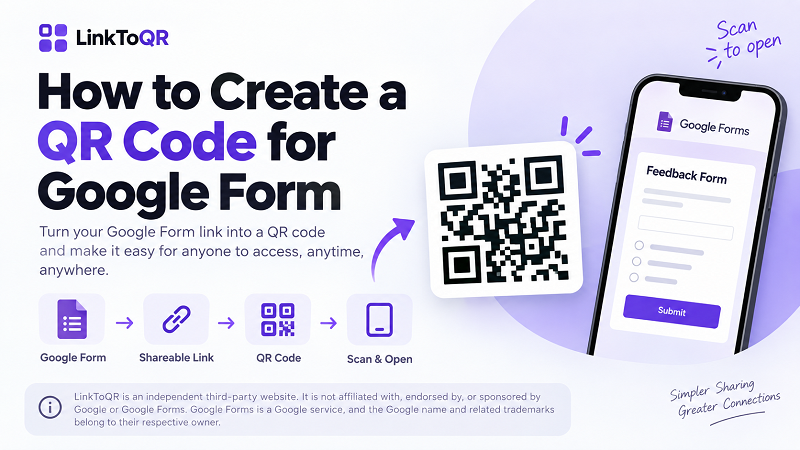
The basic process is straightforward: Google Form → shareable link → QR code → scan → Google Form.
The QR code does not contain the questions, responses, or settings of the form itself. It normally contains the URL that points to the form. As a result, the QR code and the Google Form are two separate things: the QR code provides a convenient way to access the URL, while Google Forms handles the form and its associated settings.
How Does a Google Form QR Code Work?
When a Google Form link is converted into a QR code, the URL is encoded into the QR code's data. A phone or QR scanner reads that data and recognizes it as a web address. The user can then open the address in a browser and access the Google Form according to the permissions and availability configured for that form.
For example, if a form is configured so that anyone with the appropriate link can access it, scanning the QR code can take the user directly to that form. If the form requires a Google account, restricts access to certain users, or has otherwise limited availability, those restrictions still apply. Creating a QR code does not remove or bypass the access settings of the destination form.
2. How to Create a QR Code for Google Form
The process can be completed in a few steps. You first need the shareable URL of the Google Form and then use a QR code generator that supports URL-based QR codes.
Step 1: Open Your Google Form
Start by opening the Google Form you want people to access. Make sure you are working with the correct form before copying its link, especially if you have multiple forms for different events, surveys, or purposes.
Before generating the QR code, it is also a good idea to review the form's settings. Consider who should be able to access it, whether sign-in is required, and whether any other restrictions could affect respondents.
Step 2: Copy the Google Form Link
Once your form is ready to share, obtain its shareable URL and copy it. This URL is the destination that you will turn into a QR code.
It is worth checking the link before generating the code. Open the URL in a browser or an appropriate private browsing session and confirm that it takes you to the intended form. This can help identify access restrictions or incorrect links before the QR code is printed or distributed.
Step 3: Generate a QR Code from the Google Form Link
Paste the Google Form URL into a URL-based QR code generator. A service such as LinkToQR can convert the supplied web address into a QR code.
The important part of this process is the destination URL. The QR code generator does not need access to your Google account or the contents of your form simply to encode the URL. It uses the link you provide as the data for the QR code.
After the QR code has been generated, save or export it in a suitable format for your intended use.
Step 4: Scan and Test the QR Code
Always test the QR code before sharing it publicly or sending it to print. Use a smartphone or another compatible QR scanner to scan the code and confirm that it opens the correct Google Form.
Testing is particularly important for printed materials. A QR code that looks correct on a computer screen may become difficult to scan if it is printed too small, distorted, blurred, or placed against a background with insufficient contrast.
It is also important to test the form from the perspective of an ordinary respondent. If respondents are expected to access the form without signing in, for example, make sure the form's access settings actually allow that.
3. How to Use LinkToQR as a Google Form QR Code Generator
LinkToQR can be used to convert a Google Form URL into a QR code in the same way it can convert other web URLs into QR codes. The process does not require LinkToQR to manage or access the underlying Google Form.
First, copy the shareable URL of your Google Form. Then provide that URL to the QR code generator and generate the code. Once the QR code is available, scan it with a phone to verify that it directs to the intended destination.
LinkToQR acts as the QR code generation service in this process. It does not create the Google Form, manage the form's questions or responses, control the form's permissions, or provide the Google Forms service itself.
Third-party service notice: LinkToQR is an independent website and is not a Google product. It is not affiliated with, endorsed by, sponsored by, or officially connected with Google or Google Forms. Users should refer to Google's own services and documentation for questions concerning Google Forms accounts, form settings, permissions, responses, or other Google-managed functionality.
4. Google Form to QR Code: What You Need
Creating a QR code from a Google Form generally requires only a few things: a Google Form that you want to share, a usable URL for that form, and a QR code generator that can encode URLs.
The most important part is making sure the URL points to the correct form and that the form can be accessed by the intended audience. The QR code does not change those settings.
For example, suppose you create a registration form for an event and distribute its URL as a QR code. The QR code makes the URL easier to access, but the form itself remains under the control of the Google Forms account and settings associated with it. If the form is later restricted, deleted, moved behind a sign-in requirement, or otherwise made unavailable, scanning the QR code does not override those changes.
This distinction is useful when thinking about a Google Form link to QR code conversion: the QR code is a convenient representation of the link, not a replacement for the underlying form.
5. What Happens When Someone Scans a Google Form QR Code?
When someone scans the QR code, their device reads the encoded data. If the data contains a valid web URL, the device can offer to open that address in a browser. The browser then requests the destination from the relevant web service.
For a Google Form, this ultimately means that the browser attempts to load the Google Form URL. What the person sees next depends on the form's current availability and access settings.
The QR code itself does not submit a response, authenticate the user, change the form, or grant additional permissions. It simply provides a convenient way to reach the encoded address.
Does the QR Code Change the Google Form?
No. Generating a QR code from a Google Form URL does not modify the form.
The questions, response settings, ownership, permissions, and other configurations remain associated with the Google Form rather than with the QR code. Changes made to the form should therefore be managed through the service where the form is hosted.
This is also why it is important to test the destination independently. A technically readable QR code can still lead to an inaccessible destination if the underlying form is unavailable or its permissions do not allow the intended audience to access it.
6. Where Can You Use a QR Code for Google Form?
A QR code can be useful anywhere people need to access a Google Form from a physical environment. Common examples include event registration, customer feedback, surveys, classroom activities, sign-up sheets, check-in forms, applications, printed instructions, posters, flyers, menus, and informational displays.
For an event, for example, a QR code can be placed near an entrance so attendees can scan it instead of manually typing a long URL. For a printed survey, the code can be placed next to a short instruction such as “Scan to complete the survey.”
The best use cases are generally situations where the audience already has access to a smartphone and where reducing the effort required to type or remember a URL is useful.
7. Tips for Using a Google Form QR Code
Before distributing a QR code, take a few practical steps to make sure it works reliably.
Test the code before sharing it. Scan the code using at least one smartphone and confirm that it opens the correct form. If the code will be printed, testing the final printed version is even better because printing can affect readability.
Check the Google Form's access settings. A QR code cannot make a restricted form publicly accessible. If respondents receive an access or sign-in error after scanning, review the form's settings rather than assuming the QR code is defective.
Use an appropriate size. The physical size required for reliable scanning depends on factors such as scanning distance, printing quality, and the QR code itself. A code intended to be scanned from several meters away generally needs to be larger than one placed on a small card that someone holds in their hand.
Maintain sufficient contrast. QR scanners need to distinguish the code from its background. Avoid placing the code over a visually busy image or using combinations that make the individual modules difficult to distinguish.
Leave sufficient space around the code. A clear area around the QR code helps scanners identify its boundaries and can improve scanning reliability.
Keep the destination in mind. If the QR code is printed on a permanent sign, make sure the linked form is expected to remain available for the period in which the sign will be used. A QR code can remain physically unchanged while its destination becomes unavailable or its access requirements change.
8. Can I Create a QR Code for a Google Form for Free?
Yes, a Google Form URL can be converted into a QR code using a QR code generation service that supports URLs. The cost, available features, and terms depend on the particular QR code service being used.
A static URL-based QR code generally stores the destination URL directly in the QR code rather than requiring the QR code itself to contain the form's content. This makes the QR code useful as a physical shortcut to a web address.
However, “free” should not be confused with Google's own services. Using a third-party QR code generator to create a QR code for a Google Form does not mean that the generator is provided by Google or included as part of Google Forms.
9. Does a Google Form QR Code Expire?
A static QR code does not inherently have an expiration date simply because it contains a Google Form URL. However, whether the QR code continues to lead to an accessible form depends on the destination URL and the status of the Google Form.
For example, a QR code may remain unchanged while the associated form is deleted, its access permissions are changed, or the destination becomes otherwise unavailable. In those situations, scanning the QR code may no longer provide the expected result.
It is therefore more accurate to distinguish between the QR code itself and the destination it contains. The QR code can remain the same, while the availability or behavior of the linked destination can change.
10. Google Forms and LinkToQR: What Is the Difference?
Google Forms and LinkToQR serve different purposes and are operated independently.
| Google Forms | LinkToQR |
|---|---|
| Used to create and manage online forms | Used to generate QR codes from URLs |
| Provides form fields, questions, and response functionality | Converts a supplied URL into QR code data |
| Manages the form's settings and access | Does not manage the Google Form |
| Handles form responses through Google's service | Does not collect or manage Google Form responses |
| A Google service | An independent third-party website |
Using LinkToQR to create a QR code for a Google Form does not establish an affiliation between the two services. LinkToQR simply provides a way to encode the URL supplied by the user into a QR code.
Users should manage their Google Forms, Google accounts, permissions, responses, and other Google-specific settings through Google's services.
11. Important Information About Google Forms and LinkToQR
LinkToQR provides QR code generation functionality for URLs submitted by users. When a user provides a Google Form URL, LinkToQR does not become the operator or owner of that Google Form.
The availability, content, permissions, response collection, account requirements, and other functionality of a Google Form are determined by Google and by the person or organization managing that form. Users are responsible for ensuring that they have the appropriate rights to share their form and its URL and for configuring the form appropriately for their intended audience.
LinkToQR does not represent itself as an official Google service. References to “Google,” “Google Forms,” or related Google products on this page are used only to identify the destination or service being discussed. Such references do not imply sponsorship, endorsement, partnership, or affiliation.
Users should also understand that creating a QR code does not guarantee that the destination will remain available. If the Google Form URL changes, the form is removed, access is restricted, or the destination otherwise becomes unavailable, the existing QR code may no longer provide the intended result.
For questions concerning a Google Form itself, including account access, form settings, permissions, responses, or Google's services, users should consult the relevant Google resources. LinkToQR's role is limited to the QR code generation functionality provided by its own website.