You meet someone interesting at a conference. You have a good conversation, exchange names, and before you part ways, one of you says, “Let’s connect on LinkedIn.” Sounds simple enough. Then the event ends, the room gets busy, and later you try to remember their exact name. You search LinkedIn and get a wall of similar profiles. Suddenly, that easy connection isn't quite so easy. The problem isn't that LinkedIn is difficult to use. The problem is that exchanging a digital identity in a real-world conversation still involves unnecessary friction. A QR code can remove that awkward gap by giving someone a direct path to your profile while you're standing right in front of them.
- The Real Problem Isn't Finding LinkedIn
- When a LinkedIn QR Code Makes Sense
- Your LinkedIn Profile Is the Destination
- Create LinkedIn QR Code From Your Profile URL
- Don't Make People Guess What the QR Code Does
- Put It Where the Conversation Happens
- A QR Code Can Make Networking Feel Less Awkward
- Avoid Turning the QR Code Into a Design Experiment
- Test It Before You Share It
- One Scan, One Clear Action
The Real Problem Isn't Finding LinkedIn
Most people already know how to search for someone on LinkedIn. That's not really the issue. The problem is finding the right person. Names can be common, profiles can look similar, and people may use different versions of their names professionally. Even when you find the correct profile, you're relying on memory and manual searching to get there. That's a lot of effort for something that could have taken a few seconds at the moment you met. A QR code changes the interaction from “I'll try to find you later” to “I'll open your profile right now.”
When a LinkedIn QR Code Makes Sense
A QR code works particularly well when people are meeting face-to-face but their relationship will continue online. Think conferences, industry events, networking sessions, job fairs, workshops, business meetings, coworking spaces, or even a casual professional introduction. It can also work well on a resume, portfolio, presentation slide, name badge, speaker card, or printed profile. The common factor is that the person looking at the QR code already has a reason to know more about you. Instead of asking them to remember your name and search later, you're giving them a direct route to the profile you actually want them to see.
Your LinkedIn Profile Is the Destination
Before creating a QR code, make sure the destination is worth visiting. Your LinkedIn profile should accurately represent who you are and why someone might want to connect with you. Check your headline, profile photo, current role, About section, and other information that someone is likely to notice when they land on your page. This doesn't mean you need to turn your profile into a personal marketing machine. It simply means the QR code shouldn't lead to a profile that looks unfinished or outdated. The QR code can make the connection easier, but it can't fix the experience waiting on the other side.
Create LinkedIn QR Code From Your Profile URL
The technical part is straightforward. Open your LinkedIn profile, copy the profile URL, paste it into a QR code generator, and generate the code. Then scan it with another phone and confirm that it opens the correct profile. If you want to create LinkedIn QR code for a resume, presentation, name badge, business card, or event display, LinkToQR can turn your profile URL into a scannable code. The important step is the test afterward. Make sure the code points to your own profile rather than a copied or outdated URL before you put it into a design that will be printed or shared widely.
Don't Make People Guess What the QR Code Does
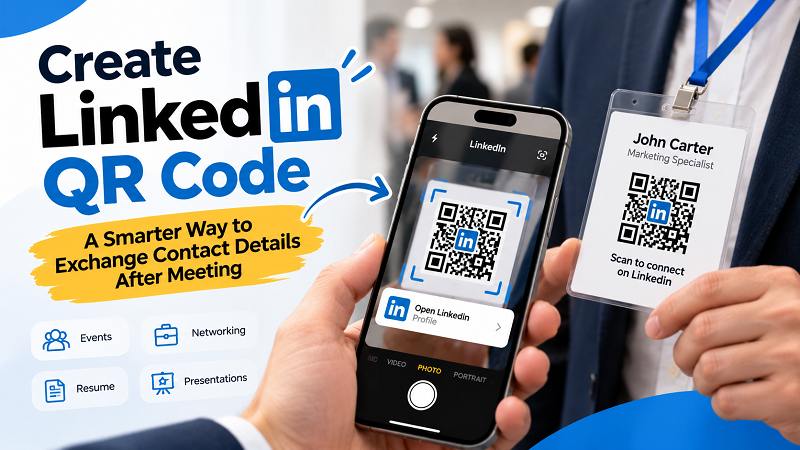
A QR code sitting by itself doesn't communicate much. Someone might recognize it, but they still have to wonder what happens after scanning. Give it a little context. “Scan to connect on LinkedIn” is immediately understandable. “Let's connect” feels more personal. “View my professional profile” works well on a resume or portfolio. The best wording depends on the situation, but the principle stays the same: tell people what they'll get before asking them to scan. This is especially important when the QR code appears alongside other information because a clear call to action helps it stand out without making the design feel pushy.
Put It Where the Conversation Happens
The best location for a LinkedIn QR code isn't necessarily the place with the most space. It's the place where someone is most likely to think, “I should connect with this person.” A name badge can make sense at a conference because the person is already standing nearby. A final presentation slide works because the audience has just spent time listening to you. A resume or portfolio can use the QR code as a quick path to your professional profile. A speaker card, event handout, or personal introduction card can do the same. The goal is to place the code close to the moment when a connection feels natural, rather than treating it as an unrelated decoration.
A QR Code Can Make Networking Feel Less Awkward
There is also a social advantage here. Asking someone to type your name into LinkedIn while you're standing together can feel strangely formal. Asking them to scan a QR code is much more natural. They don't have to pull up the search bar, spell your name correctly, or scroll through profiles. You can simply say, “Here, scan this and you'll find me on LinkedIn.” The interaction takes a few seconds and leaves both people with a clear next step. It doesn't guarantee a connection, of course, but it removes the unnecessary friction between meeting someone and giving them the option to connect.
Avoid Turning the QR Code Into a Design Experiment
LinkedIn QR codes are often placed on resumes, personal cards, slides, and professional materials, which means design matters. But this isn't the place to sacrifice functionality for visual novelty. Make sure there is enough contrast between the QR code and its background, leave enough space around it, and avoid shrinking it to a size that looks neat but becomes annoying to scan. If you're adding branding or other visual elements, keep the actual QR pattern clear. A professional-looking QR code doesn't need to be boring, but it does need to work reliably.
Test It Before You Share It
A quick test can prevent a surprisingly embarrassing mistake. Scan the QR code using a phone other than the one you used to create it. Confirm that the correct LinkedIn profile opens, check that the page loads properly, and make sure the code is still easy to scan after being placed into the final design. If you're printing it on a resume or badge, test the printed version rather than relying only on the digital file. If it's going on a presentation slide, check it from the back of the room. The real question isn't whether the QR code works under perfect conditions. It's whether a normal person can scan it without having to try three times.
One Scan, One Clear Action
The beauty of a LinkedIn QR code is that it doesn't need to do much. Its job is simply to make the next step easier. Someone meets you, scans the code, your profile opens, and they can decide whether to connect or follow. That's enough. You don't need to send them through a complicated landing page or bury the LinkedIn profile behind several buttons when the entire purpose is to make professional networking more direct.
A good QR code doesn't replace the conversation. It simply makes sure the conversation doesn't disappear when the two people walk away. When used at the right moment, it turns “Let's connect sometime” into a concrete digital connection waiting to happen.