You scan your Google Form QR code, the form opens instantly, and everything looks perfect. So you print the flyers, put the code on your event banner, add it to your counter display, and move on. Then someone tries to scan it and says, “It’s asking me to sign in.” Another person gets a permission message. Someone else says the form simply won’t let them continue. At that point, the natural reaction is to blame the QR code. But here’s the twist: the QR code may be working perfectly. A QR code only sends people to a URL. What happens after they arrive depends on the Google Form’s settings, permissions, and the user’s account. That small distinction is easy to overlook, but it can completely change the experience for customers, event attendees, students, or anyone else outside your organization.
- The QR Code Isn't Broken. The Door Might Be Locked.
- Why It Works for You but Not for Your Audience
- The Access Problems That Can Hide Behind a QR Code
- Stop Testing the QR Code Like Its Owner
- “Public” Doesn't Always Feel Public
- Your QR Code Is Only One Part of the User Journey
- Give Your QR Code a Real-World Test Before Printing
- A Working QR Code Doesn't Guarantee a Working Campaign
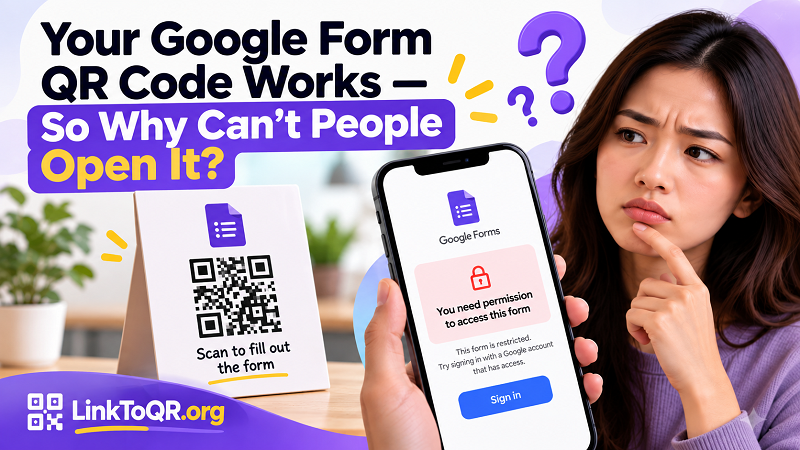
The QR Code Isn't Broken. The Door Might Be Locked.
Think of a QR code as a sign pointing people toward a building. The sign can be perfectly printed, easy to scan, and placed in exactly the right location. But if the door behind that sign is locked, nobody is getting inside. Google Forms can create the same situation. When you create a form and test it yourself, you're usually working from the best possible scenario: you're already logged into Google, your account may already have permission, and your browser knows who you are. Everything feels seamless because Google already recognizes you. Your audience may have none of those advantages. A customer could be using a different Google account, browsing without being signed in, or coming from outside your organization entirely. The QR code still sends them to the correct URL, but the form may present a completely different experience. From the user's point of view, the QR code appears broken even though the real issue is sitting behind it.
Why It Works for You but Not for Your Audience
One of the easiest mistakes with QR-based Google Forms is testing only from the creator's perspective. Imagine you're creating a customer feedback form. You copy the form link, turn it into a QR code, scan it with your phone, and everything works. That feels like a complete test, but it really only proves that your account can access the form. A better test asks whether someone who has never seen the form before can do the same thing. This matters particularly when the form is intended for customers, event visitors, giveaway participants, or other members of the public. If they encounter a sign-in requirement or permission restriction, many won't stop to figure out what went wrong. They'll simply close the page and move on. That's the frustrating part: the campaign can lose responses even though the QR code itself is completely functional.
The Access Problems That Can Hide Behind a QR Code
The first issue you'll often notice is a Google sign-in request. Sometimes that's perfectly reasonable. An internal employee survey, for example, may intentionally be limited to people within a company. But if you're collecting public feedback or asking customers to register for a promotion, forcing people through an unexpected login step can add friction at exactly the wrong moment. Permission restrictions can create an even bigger problem. You might be able to open the form because your account belongs to the permitted organization, while an outside visitor receives a message saying they don't have access. Some individual form features can also introduce additional requirements. File uploads are a good example because they may behave differently from ordinary text or multiple-choice questions. Then there is another problem that is easy to miss: the form may have worked perfectly when the QR code was created but later become unavailable because the form was closed, settings were changed, or responses were no longer being accepted. The printed QR code doesn't know any of this. It simply keeps pointing to the same destination.
Stop Testing the QR Code Like Its Owner
Before publishing a QR code, most people ask one question: “Does it scan?” That's useful, but it isn't enough. The more important question is: “Can a stranger use it?” Those two tests are not the same. Your own phone may already be logged into the correct Google account, while a customer's phone may not be. Your account may have permission that another user doesn't. Your browser may remember settings that won't exist on someone else's device. A much stronger test is to use another phone, preferably with a different Google account, and try opening the form as if you've never seen it before. If the audience is public, testing while signed out can reveal problems that remain invisible when you're logged in. Don't stop when the form loads, either. Go through the entire experience: answer required questions, test special fields, try an upload if one exists, and actually submit the form. You're not testing whether the QR code looks good anymore; you're testing whether the entire journey works.
“Public” Doesn't Always Feel Public
A form can be intended for the public while still creating an experience that feels restricted. That's why the audience should come before the settings. A customer feedback form has a different job from an internal employee survey. A public event registration form has different requirements from a classroom form designed for students within a specific organization. Before turning any form into a QR code, think about the person standing on the other side of the camera. Do they already have a Google account? Are they likely to be signed in? Are they coming from outside your company or school? Are they expected to upload something? Will they be using a personal phone? The answers help determine what kind of access experience you need. The goal isn't necessarily to remove every restriction from every form. The goal is to make sure the restrictions match the people you're actually asking to use it.
Your QR Code Is Only One Part of the User Journey
This is where QR campaigns are often oversimplified. The process isn't simply create QR → print QR → done. The real journey is more like see the QR code → scan it → open the URL → pass any access requirements → understand the form → complete the questions → submit the response. A failure anywhere along that chain can make the whole campaign feel broken. That's why choosing a reliable qr code generator for google forms is only one part of the process. The destination needs to be ready for the people you're sending there. A QR code printed on a poster at a busy event could be scanned by hundreds of people who have never interacted with your organization. A code placed on a product package could be scanned weeks or months after the form was created. A code on a receipt could reach customers who have no idea which Google account the form expects them to use. They don't see your backend settings. They only see what happens on their screen.
Give Your QR Code a Real-World Test Before Printing
You don't need an elaborate testing department to catch most of these problems. A few minutes of realistic testing can reveal a lot. Use a different phone, scan the code, and try accessing the form without relying on the account that created it. Check whether the page opens normally, whether an unexpected sign-in request appears, whether any permission message shows up, and whether all important fields actually work. Then submit a test response. If your form is intended for customers or the general public, ask someone who wasn't involved in creating it to try the process without giving them instructions. Their confusion is useful information. If they immediately ask which account they should use, where they need to sign in, or why they can't access a particular field, you've found a problem before your audience finds it for you.
A Working QR Code Doesn't Guarantee a Working Campaign
There's an important difference between a QR code that works and a QR experience that works. The first means the camera can read the pattern and open the destination. The second means the person who scanned it can actually accomplish what you wanted them to do. For Google Forms, that difference can come down to access settings, authentication, form availability, or a single feature that behaves differently for outside users. So before putting your next Google Form QR code on a poster, flyer, package, event sign, or counter display, don't just scan it with your own phone and call the job finished. Test it from the other side. Scan like a stranger, open it like a stranger, fill it out like a stranger, and submit it like a stranger. If the entire journey works without someone from your team standing nearby saying, “Oh, you need to log into that account first,” your QR campaign is ready for the real world.