You've probably seen this happen.
- The Last 60 Seconds Matter
- Don't Turn the Feedback Form Into Another Assignment
- Give the QR Code a Job
- Put It Where the Worksheet Naturally Ends
- Make It Work After Photocopying
- Build the Form for a Phone, Not a Laptop
- You Can Use This Beyond Workshops
- Don't Wait Until Everyone Has Left
- A Small Shortcut Can Change the Response
A workshop ends. People pack their bags, check their phones, say goodbye, and head for the door. At some point, the organizer says, “We'd love your feedback. There's a link on the handout.”
Everyone nods.
Then almost nobody fills it out.
It sounds like a participation problem, but often it's really a friction problem. The person may have genuinely enjoyed the session and even have something useful to say. The trouble is that they now have to remember the link, open a browser, type it correctly, find the form, and decide whether answering several questions is worth the effort.
By the time they get home, that tiny task has disappeared from their brain.
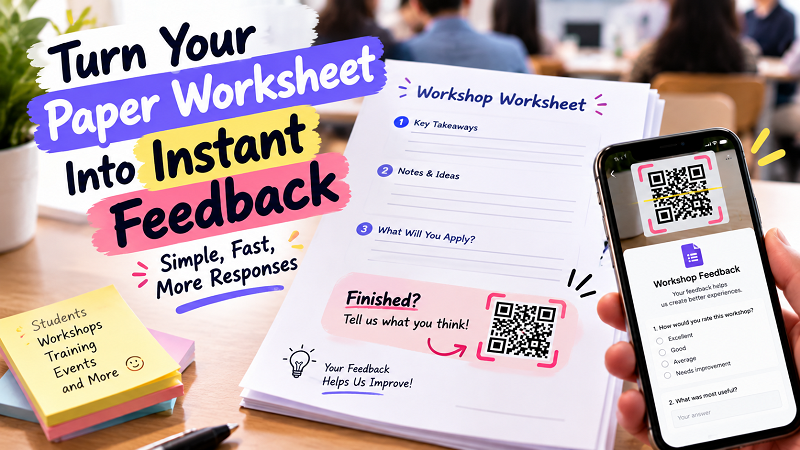
A paper worksheet can actually solve part of this problem. Instead of treating the handout as something that becomes useless once the lesson ends, you can give it a second job: becoming a simple bridge between the physical experience and a quick digital response.
The Last 60 Seconds Matter
Feedback doesn't always need to happen after the event.
In many cases, the most useful moment is right before someone leaves, while the experience is still fresh. A student has just completed an exercise. A workshop attendee has finished a practical activity. A training participant has just learned something new. A class has wrapped up a discussion.
That's the moment when questions such as “What was most useful?” or “What should we improve?” are easiest to answer.
The problem is that paper and digital feedback often live separately. The worksheet contains the lesson, while the feedback form lives somewhere else. Connecting the two can make the transition much more natural.
Instead of writing a long URL at the bottom of the page, leave a small dedicated area with a clear invitation such as “Finished? Tell us what you thought” followed by a QR code.
Now the next step is visible exactly where the participant needs it.
Don't Turn the Feedback Form Into Another Assignment
There's a second problem that has nothing to do with QR codes: overly ambitious forms.
If someone has just finished a one-hour workshop and sees a feedback form containing 18 questions, the enthusiasm may disappear pretty quickly.
A short form can be much easier to complete. Ask what you genuinely need to know rather than everything you might possibly want to know.
For example, a workshop organizer may only need to learn which section was most useful, whether the session met expectations, and what should be improved next time. A teacher might want to know which activity helped students understand the material and where they still feel uncertain.
The QR code gets people to the form. The form itself determines whether they stay.
That distinction is worth remembering because reducing the first few seconds of friction won't compensate for a feedback experience that feels like paperwork.
Give the QR Code a Job
A QR code shouldn't be floating at the bottom of a worksheet with no explanation.
Give it a specific purpose.
“Scan for feedback” is perfectly clear. “Tell us what you think” feels more conversational. “60-second workshop feedback” sets an expectation about the amount of effort involved.
The wording can also reflect the personality of the event. A professional training session might use straightforward language, while a creative workshop could be more playful.
What matters is that the participant understands what happens after the scan and roughly how much time it will take.
This is particularly useful when several QR codes appear on the same worksheet. If one opens additional resources and another opens a feedback form, label them clearly. A QR code should never become a guessing game.
Put It Where the Worksheet Naturally Ends
Placement is surprisingly important.
The bottom of the final page is an obvious location because it creates a natural sequence: finish the worksheet, then decide whether to leave feedback. You can also place the QR code beside an “Exit Ticket” section if the worksheet is designed around a final reflection.
For multi-page materials, avoid scattering feedback instructions across the document. The participant shouldn't have to remember that page two mentioned a survey while they are packing up on page six.
Think of the worksheet as a small journey. The content comes first. The reflection comes near the end. The feedback invitation appears when the participant has enough context to respond.
This approach feels much less like advertising and much more like a natural final step.
Make It Work After Photocopying
Here's a detail that's easy to miss when designing digital documents: the worksheet might not stay digital.
Teachers photocopy pages. Trainers print handouts. Workshop organizers make last-minute copies. A beautiful QR code on the original PDF can become much less impressive after going through a printer, copier, or low-quality scan.
That's why the printed version needs to be tested.
Keep enough white space around the code, maintain strong contrast, and don't make it unnecessarily tiny. Print a real copy and scan it with a phone. If possible, test a photocopied version too.
You don't need a massive QR code taking over half the page. You need one that remains reliably readable in the format people will actually receive.
Build the Form for a Phone, Not a Laptop
The person scanning your worksheet is probably holding a phone.
That means the form should feel comfortable on a small screen. Questions should be easy to read, buttons should be easy to tap, and participants shouldn't have to zoom in and out just to understand what they're being asked.
This is especially important when the worksheet itself is physical. The entire point of the QR code is to create a quick transition from paper to phone. If the digital experience suddenly feels like a desktop website squeezed onto a tiny display, you've reintroduced the friction you were trying to remove.
Before printing anything, scan the code yourself and complete the form from start to finish on a phone. Don't just check that the form opens. Actually submit a response.
That's the difference between testing a link and testing an experience.
You Can Use This Beyond Workshops
The same idea works in plenty of situations where a physical document has a natural endpoint.
A teacher can use it for an exit ticket after a lesson. A trainer can collect reactions immediately after a session. A conference organizer can ask attendees which presentation they found most useful. A community group can collect suggestions after a meeting. A business can place a short feedback request on an instruction sheet or product guide.
The format changes, but the principle stays the same: the person already has the information in front of them, and the next action should require as little searching as possible.
That makes the QR code less of a decorative feature and more of a transition tool.
Don't Wait Until Everyone Has Left
If feedback matters, make the invitation part of the experience rather than an afterthought.
At the end of the session, point participants toward the final section of the worksheet. Give them a minute to scan it and answer. If the form is genuinely short, that minute may be enough.
You can even tell them exactly what you want: “Before you leave, scan this and tell us one thing that worked and one thing we could improve.”
That's much more concrete than promising to send a survey later.
And because the worksheet is already in their hands, there is no need for them to remember an email, search for a message, or hunt through a website when they get home.
A Small Shortcut Can Change the Response
There is nothing particularly complicated about connecting a paper worksheet to a digital feedback form. The useful part is the timing.
Someone finishes an activity. The question is still fresh. The worksheet is right in front of them. Their phone is already in their hand. Instead of introducing another task, you give them one obvious next step.
That's where a google form qr code generator can fit naturally into the workflow. Create the form first, connect the destination to the QR code, place it where the worksheet naturally ends, and test the entire process before sending the material to the printer.
The QR code isn't the feedback strategy. It's simply the shortcut that helps the strategy happen while people still care enough to respond.