There’s a uniquely annoying moment when you point your phone at a QR code, wait for the camera to recognize it, and… nothing useful happens. Maybe it refuses to scan. Maybe it scans but sends you to a dead page. Or perhaps it worked perfectly last month and suddenly appears to be broken.
- First, Find Out What Kind of “Broken” You’re Dealing With
- The Link Inside the QR Code May Be the Real Problem
- Your Website May Have Changed Behind the Scenes
- It Scans, But the Page Still Won't Open
- A QR Code Can Be Technically Correct and Still Be Hard to Scan
- Don't Crop the Edges Just to Make It Look Cleaner
- What If It Used to Work and Suddenly Doesn't?
- The Five-Minute QR Troubleshooting Test
- How to Avoid the Problem Before You Print
- Static QR Codes and the “Expiration” Myth
- Before You Reprint Everything, Check the Destination
Before blaming the QR code, take a breath. A QR code usually doesn’t just randomly “expire.” In many cases, the little square image is perfectly fine. The problem is somewhere between the code, the link stored inside it, the website receiving the visitor, or the physical condition of the printed code.
Here’s how to figure out what actually went wrong.
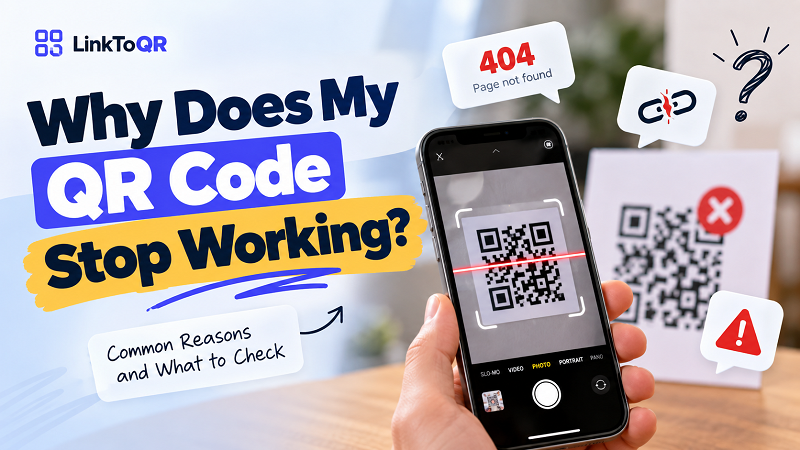
First, Find Out What Kind of “Broken” You’re Dealing With
Not all QR problems are the same. That matters because the solution depends on where the failure happens.
If your phone doesn’t recognize the QR code at all, you’re probably dealing with a scanning or image-quality problem. If the camera recognizes it and displays a link but the page doesn’t load, the QR itself may be working perfectly—the destination could be the problem.
There’s another common situation: the QR scans successfully, the browser opens, but the visitor lands on a page that no longer exists. That can happen after a website redesign, URL change, deleted product page, expired campaign, or domain migration.
So don't immediately regenerate the QR code. First figure out which part of the chain has failed.
The Link Inside the QR Code May Be the Real Problem
A QR code is essentially a compact way of carrying information. For a website QR code, that information is typically a URL. When someone scans the code, their device reads the encoded address and attempts to open it.
That means a perfectly readable QR code can still lead nowhere.
Imagine you created a QR code for:
https://example.com/summer-sale
Everything works. You print it on 5,000 flyers. A few weeks later, you remove the /summer-sale page from your website.
The printed QR code hasn't changed. It hasn't become defective. It is still faithfully pointing visitors to the same address.
The problem is that the address no longer leads somewhere useful.
This is why testing the destination URL itself is one of the fastest ways to diagnose a QR problem. Type or paste the URL into a browser manually. If the page doesn't work without the QR code, you've found the likely culprit.
Your Website May Have Changed Behind the Scenes
Website owners change things all the time. Pages get renamed, products disappear, websites move to new domains, and old URLs get replaced with new ones.
That's perfectly normal for a website, but printed QR codes don't magically know about those changes.
For example, suppose your QR code points to:
example.com/menu
Later, your website changes the page to:
example.com/restaurant-menu
If the original URL no longer exists and there's no redirect between the two addresses, anyone scanning the old QR code may see a 404 error.
This is particularly important for QR codes printed on things that aren't easy to replace: packaging, business cards, posters, restaurant menus, signs, brochures, and product displays.
The QR image may look exactly as sharp and readable as the day it was created. The problem is simply that the destination has moved.
It Scans, But the Page Still Won't Open
Sometimes the scanner does its job perfectly. Your phone recognizes the code, shows the URL, and you tap it. Then you get an error.
At this point, stop troubleshooting the QR image. The scanner has already proved that it can read the code.
Instead, check the website.
Is the domain still active? Does the URL return an error? Has the page been removed? Is the site forcing an unusual redirect? Does the destination require a login? Is the server temporarily unavailable?
It's also worth trying the URL on another device or network. A page that works on your Wi-Fi might behave differently on mobile data, especially if the problem involves DNS, network restrictions, or a temporary server issue.
This simple distinction—“the QR won't scan” versus “the QR scans but the destination fails”—can save you a surprising amount of time.
A QR Code Can Be Technically Correct and Still Be Hard to Scan
Now for the other side of the problem: sometimes the destination is perfectly healthy, but the QR image itself has been damaged by design, printing, or handling.
QR codes rely on a specific visual structure. If important parts of that structure become difficult for a camera to distinguish, scanning becomes unreliable.
A few common offenders include:
- Extremely low-resolution QR images
- QR codes printed too small
- Poor contrast between the code and background
- Excessive decoration around or inside the code
- A logo covering too much of the pattern
- Blurry printing
- Uneven or curved surfaces
- Glare from glossy materials
- Dirt, scratches, folds, or physical damage
There's also the quiet killer: printing a QR code and never testing the actual printed version.
A QR code may scan flawlessly on your computer screen but fail when printed on a dark flyer at a small size. Digital testing is useful, but physical testing is what matters when people will encounter the code in the real world.
Don't Crop the Edges Just to Make It Look Cleaner
QR codes need some breathing room around the pattern. That empty area helps scanning systems distinguish the QR code from the surrounding design.
This becomes an easy mistake when someone is trying to make a QR code fit neatly into a graphic. They crop the whitespace, squeeze the code into a tight box, or place it directly against busy artwork.
It might still scan on a powerful modern phone under perfect lighting. That doesn't mean it will work reliably for everyone.
A QR code should be treated as a functional element, not merely a decorative graphic.
Design around it rather than forcing the code to fight for attention.
What If It Used to Work and Suddenly Doesn't?
This is where things get interesting.
If the exact same QR code worked before and now doesn't, ask what changed?
Did the website URL change?
Did the domain expire?
Was the destination page deleted?
Did the hosting configuration change?
Was the printed code damaged?
Did someone modify the design and export a lower-quality version?
Was a redirect removed?
The answer is usually found by comparing the situation before and after the failure.
If the QR code has been sitting untouched on a poster for six months and suddenly stops working, inspect the destination website first. If the poster was recently redesigned or reprinted, inspect the new QR image and its print quality.
That little timeline can tell you a lot.
The Five-Minute QR Troubleshooting Test
When a QR code refuses to cooperate, run through this sequence instead of immediately creating another one.
1. Scan it with a different phone.
This quickly tells you whether the problem is device-specific.
2. Check whether the scanner recognizes a URL.
If it does, the QR image itself is probably readable.
3. Open the destination URL manually.
If the URL fails in a browser, investigate the website rather than the QR code.
4. Compare the current URL with the original destination.
Look for changed paths, domains, deleted pages, or missing redirects.
5. Inspect the physical QR code.
Look for blur, damage, tiny print size, weak contrast, cropping, glare, or distortion.
Five minutes of diagnosis can often reveal more than repeatedly generating new QR codes and hoping one magically fixes the problem.
How to Avoid the Problem Before You Print
The easiest QR code problem to fix is the one you never create.
Before sending a QR code to the printer, open the destination URL yourself. Check it on desktop and mobile. Scan the actual QR code from the final design. If possible, print a small test and scan that physical copy too.
And don't test it just once.
If the QR code is going onto something permanent—like packaging, signage, a business card, or a long-running menu—the destination should be a URL you expect to maintain for a while.
If you've just confirmed the final link, you can turn link into qr code and test the finished code before putting it into your design.
The goal isn't simply to make a QR code that scans today. The goal is to create something that makes sense for the entire lifespan of whatever you're printing.
Static QR Codes and the “Expiration” Myth
One of the most common misunderstandings is that every QR code has an expiration date.
A static QR code doesn't work that way. The information is encoded directly into the QR pattern. There isn't necessarily a service sitting in the middle waiting to keep the code alive.
But there's an important distinction: the QR code can remain readable while the information it points to becomes unavailable.
Think of it like a printed street address. The address printed on the paper doesn't disappear. But if the building is demolished, the address doesn't suddenly become useful again.
That's why “the QR code expired” isn't always an accurate diagnosis. In many cases, the QR code is still doing exactly what it was designed to do—it is simply pointing to something that has changed.
Before You Reprint Everything, Check the Destination
A failed QR code doesn't automatically mean you need to replace the artwork, regenerate the code, and send everything back to the printer.
First determine where the failure occurs.
If the code doesn't scan, investigate the image and physical presentation. If it scans but opens a broken page, investigate the URL and website. If the destination has moved, determine whether the old URL can redirect visitors to the new location.
And if everything looks correct digitally but the printed version fails, the printer—or the design exported for printing—may be the real suspect.
The tiny square on the page isn't always guilty.
Sometimes, it's just the messenger.