- The Missing Form Is Only the Beginning
- Design the Form Around the Decisions You Need to Make
- Put the Form One Scan Away From Parents
- Build a Follow-Up System Before the Deadline Arrives
- Five Checks Before Sending the Notice Home
- Protect Student Information While Making Sign-Ups Easier
- A Calmer Departure Starts With a Clearer Process
The bus is booked. The itinerary is ready. The permission deadline is approaching, and somehow, several students still haven't returned their signed forms. Sound familiar? For teachers and school administrators, collecting field trip permissions can turn into a frustrating game of reminders, missing paperwork, and last-minute spreadsheet updates.
Moving the process online can eliminate much of that administrative chaos, but simply creating a digital form isn't enough. Parents need an easy way to access it, teachers need a reliable way to track responses, and schools need to handle student information responsibly. Here's how to build a smoother field trip permission workflow using Google Forms and QR codes.
The Missing Form Is Only the Beginning
Paper permission slips create more work than their small size suggests. A form goes home in a backpack, gets buried under homework, or sits on a kitchen counter until the deadline has passed. Even when parents return the paperwork, teachers still need to review each submission, identify missing information, and update their records.
The real headache is visibility. When permission slips arrive through different channels, it's easy to lose track of who has responded and who still needs a reminder. A teacher may spend valuable planning time checking names instead of preparing activities, coordinating transportation, or making sure students have everything they need for the trip.
Digital forms offer a more organized alternative. Responses can be collected in one place, making it easier to review submissions and identify outstanding tasks. The goal isn't to eliminate every follow-up; it's to stop routine administration from becoming a second job.
Design the Form Around the Decisions You Need to Make
Before generating a QR code, get the form right. A digital form that asks unnecessary questions or buries the important details can frustrate parents just as much as a paper slip.
Start with the information needed to coordinate the trip. Depending on school policy and the nature of the activity, this may include the student's name, class or grade, parent or guardian contact information, attendance confirmation, and acknowledgment of relevant trip details. If additional information or formal consent is required, follow the school's established procedures and applicable requirements.
Keep the experience focused. Explain where students are going, when the trip takes place, the response deadline, and whom parents can contact with questions. Use clear labels and arrange questions in a logical order. If parents are completing the form on a phone, a short, easy-to-navigate experience is far more practical than a wall of questions.
Also, decide how responses will be reviewed before distributing the form. Who is responsible for checking submissions? Which details require verification? What happens when a parent reports an issue or requests clarification? A little planning upfront prevents a digital form from becoming another inbox that nobody owns.
Put the Form One Scan Away From Parents
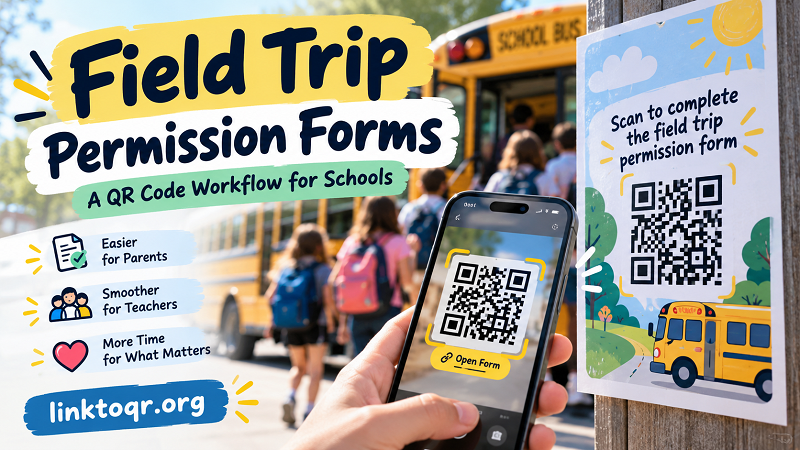
Parents shouldn't have to search through old emails or type a long URL just to confirm that their child can attend a field trip. A QR code provides a direct route from a printed notice, classroom handout, or school bulletin to the online form.
First, publish the Google Form with the appropriate access settings and copy its respondent-facing link. Make sure the form is accessible to the intended audience; school-managed accounts and organizational restrictions can sometimes prevent parents from opening a form outside the school network.
Next, use a QR code generator to turn that link into a scannable code. You can use google form link to qr code to get started with LinkToQR, then place the resulting code on the materials parents are most likely to see. Add a short instruction such as “Scan to complete the field trip permission form” and include the deadline so the next step is obvious.
Placement matters. Put the code beside the relevant instructions rather than hiding it in a corner of a crowded page. Make it large enough to scan comfortably, preserve sufficient contrast, and leave clear space around it. If the notice is printed, test the actual printed copy instead of assuming that a code that works on your computer will automatically work on paper.
And don't make scanning the only option. Include a readable short link or explain how parents can request assistance. Some families may have limited access to smartphones, unreliable internet connections, or accessibility needs that make another submission method more appropriate.
Build a Follow-Up System Before the Deadline Arrives
A QR code makes accessing the form easier, but it doesn't automatically tell you which families still need to respond. That part requires a simple tracking routine.
Google Forms can collect submissions and, when configured to do so, store responses in a linked Google Sheet. Use that information to maintain a clear operational picture of the trip. For example, organize your follow-up work around three categories:
- Response received: A submission has arrived and contains the information needed for the next step.
- Needs review: A response is incomplete, unclear, or requires confirmation from the parent or school staff.
- No response recorded: There is no submission associated with the student yet, so the designated staff member can follow up through an appropriate channel.
Be careful when matching responses to students. A missing name, duplicate submission, or inconsistent spelling can make a completed form appear to be missing. Establish a consistent identification method that follows school policy, and have someone review exceptions rather than assuming every spreadsheet entry is accurate.
Set a reminder schedule that gives families reasonable notice. An initial announcement, a reminder before the deadline, and a targeted follow-up for outstanding responses may be enough for many trips. Avoid repeatedly messaging every family when only a few responses remain outstanding.
Most importantly, distinguish between receiving a form and confirming that all required arrangements are complete. A submission may still need review, and a QR code scan is not proof that a parent has submitted anything. Keep those stages separate in your workflow.
Five Checks Before Sending the Notice Home
A few minutes of testing can save a surprising amount of troubleshooting later. Before distributing the permission notice, run through these five checks:
- Scan the code on a phone. Use the camera app or an appropriate QR scanner and confirm that the correct form opens.
- Check access permissions. Test the form using an account or device representative of the parents who will receive it. Look for sign-in requirements or organization restrictions.
- Submit a test response. Verify that the form accepts an entry and that the response appears where the school expects it to appear.
- Inspect the printed material. Check the code's size, contrast, surrounding space, and placement. Make sure instructions and the deadline are readable.
- Confirm the backup option. Ensure parents can access a written URL or contact the school if scanning or completing the form isn't possible.
If you change the form link, access settings, or printed design after testing, test the updated version again. A last-minute edit can introduce a problem that wasn't present in the original version.
Protect Student Information While Making Sign-Ups Easier
Convenience should never come at the expense of student privacy. A QR code can make a form easier to reach, but anyone who obtains the code may be able to attempt to open the linked page. The form's actual access controls determine what users can view or submit.
Collect only information needed for the trip and the school's responsibilities. Restrict access to response records to authorized staff, review sharing permissions on linked spreadsheets, and avoid publishing sensitive student details on printed notices or publicly accessible pages. If the form requests medical, emergency, or other sensitive information, follow the school's approved procedures for collecting and storing it.
Review account restrictions, retention requirements, and relevant privacy policies before launching the process. Do not assume that a publicly accessible form is appropriate for every type of permission or that a QR code itself provides security. If the school requires a particular consent process or approved platform, use that process rather than replacing it with an unapproved form.
A Calmer Departure Starts With a Clearer Process
Field trip planning already involves enough moving parts. Teachers shouldn't have to spend the final days before departure chasing paper slips and piecing together incomplete records. A well-designed Google Form, a clearly placed QR code, and a consistent follow-up routine can make the administrative side of the trip more manageable.
Start with one upcoming activity. Keep the form focused, test the complete submission process, make the QR code easy to find, and assign responsibility for reviewing responses. Give parents a backup way to participate, and protect the information they provide.
The win isn't just fewer sheets of paper. It's a process that's easier for families to navigate and easier for school staff to manage—leaving more time for the part everyone actually looks forward to: the field trip itself.