- Why Generate a QR Code Online?
- What Can You Create a QR Code For?
- Website Links
- Online Forms
- Digital Menus
- Event Pages
- Social Profiles
- How to Generate a QR Code Online
- 1. Start With Your URL
- 2. Open an Online QR Code Generator
- 3. Enter Your Link
- 4. Generate the QR Code
- 5. Scan the Result
- 6. Download and Add It to Your Project
- Online QR Code Generator vs. QR Code App
- How to Make an Online QR Code Easy to Scan
- Keep Enough Space Around the QR Code
- Use Good Contrast
- Choose an Appropriate Size
- Test the Final Design
- What Happens After Someone Scans the QR Code?
- Do You Need an App or Account?
- Static and Dynamic QR Codes
- Where to Use an Online-Generated QR Code
- Keep the Destination in Mind
- Generate a QR Code Online in Just a Few Steps
Need a QR code but don't want to download another app? You probably don't need one.
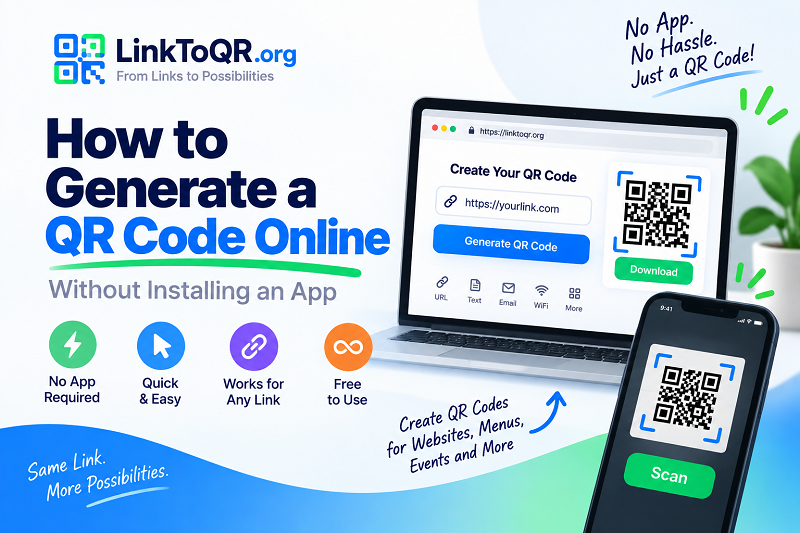
For a basic website link, you can generate a QR code directly from your browser. The process takes only a few moments: enter the URL, generate the code, scan it to make sure it works, and then use it wherever you need it.
This browser-based approach is particularly useful when you're creating a QR code for a website, event, menu, business card, presentation, or printed material and simply want to get the job done without installing additional software.
Why Generate a QR Code Online?
QR codes are designed to make sharing information easier. An online generator makes creating one just as convenient.
Instead of downloading an application, creating an account, and learning a new interface, you can open a QR code generator in your browser and start with the information you already have.
For a website URL, that's usually all you need.
Online QR code generation can be useful when you're:
- Creating a QR code for a website
- Preparing an event invitation
- Designing a business card
- Adding a digital menu to printed materials
- Sharing a product page
- Creating a QR code for a presentation
- Adding a website to a poster or flyer
- Connecting physical marketing materials to an online page
The biggest benefit is convenience. If the goal is simply to turn a link into something people can scan, there is little reason to make the process more complicated than necessary.
What Can You Create a QR Code For?
QR codes can contain different types of information, depending on the generator you use. One of the most common uses is a website URL.
Website Links
A QR code can take someone directly to a webpage. This is useful for websites, landing pages, online stores, articles, portfolios, and other online destinations.
Online Forms
If you're collecting registrations, feedback, or responses through an online form, a QR code can provide a quick way for people to access it from a printed notice or event display.
Digital Menus
Restaurants and cafes can place QR codes on tables, counters, or menus to direct customers to a digital menu.
Event Pages
An event QR code can lead visitors to a registration page, schedule, venue information, or other event resources.
Social Profiles
A QR code can also provide a quick path to a social media profile or another online presence, especially when the code appears on a business card, poster, or physical display.
How to Generate a QR Code Online
Creating a QR code in your browser is usually straightforward. You don't need specialized technical knowledge.
1. Start With Your URL
First, decide where you want the QR code to send people.
Copy the complete URL from your browser and make sure it points to the exact page you want visitors to see.
For example, if you're promoting a particular product, use the product page rather than simply sending visitors to the website homepage. The fewer steps someone has to take after scanning, the more useful the QR code becomes.
2. Open an Online QR Code Generator
Next, open an online QR code generator in your browser.
If you're looking for a simple way to gen qrcode online, a browser-based tool such as LinkToQR.org lets you work directly with your URL without needing to install a separate application.
This can be especially convenient when you're working from a desktop computer and want to transfer the resulting QR code to a design, document, presentation, or printed project.
3. Enter Your Link
Paste your URL into the generator.
Before continuing, double-check the address. A small mistake in a URL can send every person who scans the QR code to the wrong destination.
If the URL contains tracking parameters or other important information, make sure the complete address has been copied.
4. Generate the QR Code
Once the URL is ready, generate your QR code.
The generator converts the URL into the familiar square pattern that smartphones can recognize and decode.
For a basic website link, this process should be quick. You don't need to manually configure the individual elements of the QR code.
5. Scan the Result
Before downloading or publishing the QR code, scan it with your phone.
This is one of the most important steps in the entire process.
Confirm that the scanner recognizes the code and that it opens the intended webpage. If the code will eventually be printed, consider testing a version at approximately the size you plan to use.
A QR code that works perfectly on a large monitor may behave differently when reduced to a small business card.
6. Download and Add It to Your Project
Once you've tested the code, download the QR code image and add it to your project.
You might place it on a flyer, presentation, menu, business card, poster, product label, or website.
Keep the QR code clear and easy to distinguish from the surrounding design.
Online QR Code Generator vs. QR Code App
Both approaches can create QR codes, but they suit different situations.
An app may make sense if you frequently create QR codes from your phone and need mobile-specific features. However, installing an app isn't always necessary for a simple URL.
An online generator can be more convenient when you're already working in a browser. There's no installation step, and you can create the code from virtually any device with an internet connection.
For occasional QR code creation, the browser can be the simplest place to start.
How to Make an Online QR Code Easy to Scan
Generating the code correctly is only half the job. Your design and placement also affect how easily people can scan it.
Keep Enough Space Around the QR Code
Don't squeeze text, logos, or decorative elements directly against the QR code.
Leave clear space around the edges so scanning systems can distinguish the code from the surrounding design.
Use Good Contrast
A QR code should have enough contrast against its background.
A highly decorative QR code might look impressive, but readability should come first. If people need to move their phones around several times before getting a scan, the design isn't doing its job.
Choose an Appropriate Size
The right size depends on where the QR code will be placed and how far away people will scan it.
A code on a business card can be smaller than one displayed on a large poster, but neither should be made smaller than necessary simply to save space.
Test the Final Design
Always test the final version.
If you've added a logo, changed the colors, resized the image, or placed it over a background, scan that actual version rather than relying on the original generated image.
What Happens After Someone Scans the QR Code?
For a URL-based QR code, scanning generally opens the encoded web address.
That means the quality of the experience depends heavily on the destination page.
If your QR code leads to a website, make sure the page works well on mobile devices. Visitors shouldn't have to zoom in and out or struggle with a page that was designed only for desktop screens.
It's also worth checking the page periodically if the QR code will be displayed for a long time. A QR code can remain visually perfect while the webpage behind it becomes unavailable.
Do You Need an App or Account?
For a simple URL-based QR code, you may not need either.
Browser-based QR generators can make the process as simple as entering a link and generating the code. Whether you need an account depends on the specific service and the features you want to use.
Advanced features can vary significantly between providers. Some platforms offer additional functionality such as analytics, customization, campaign management, or editable destinations.
If all you need is a QR code that points to a webpage, start by identifying that basic requirement. You may find that a simple online generator is enough.
Static and Dynamic QR Codes
Before using a QR code for a long-term project, it's useful to understand the difference between static and dynamic QR codes.
A static QR code contains the destination information directly. If you create one for a particular URL, that URL is built into the code.
A dynamic QR code generally uses a redirect or intermediary URL. Depending on the service, the destination can potentially be changed later without replacing the printed QR code.
This distinction can be important for businesses and campaigns.
For example, if you're printing a QR code on a permanent sign, changing the destination later could be useful. On the other hand, if you're simply adding a QR code to a one-time presentation, a basic static code may be perfectly adequate.
Where to Use an Online-Generated QR Code
Once you've created and tested your QR code, there are plenty of places where it can be useful.
A business card can use a QR code to connect a physical introduction with a website or portfolio.
A restaurant can use one to direct customers to its current menu.
An event organizer can put one on a poster to provide quick access to registration or event details.
A retailer can use one on packaging to provide additional product information.
A presentation can include one so that people in the room can open a webpage without manually typing the address.
The common thread is simple: the QR code gives people a shortcut to digital information.
Keep the Destination in Mind
It's easy to think of the QR code as the main product, but technically it is just the doorway.
The webpage behind it matters just as much.
If someone scans a QR code and lands on a slow page, an outdated URL, or a page that's difficult to navigate on a phone, the QR code hasn't solved the underlying problem.
Before sharing your code, open the destination yourself on a phone. Make sure the page loads properly, the important information is easy to find, and visitors can complete whatever action you want them to take.
Generate a QR Code Online in Just a Few Steps
You don't need an app or complicated software to create a QR code for a website link.
Choose your URL, open an online QR generator, enter the link, generate the code, and test it before using it. From there, you can add the QR code to everything from business cards and menus to event materials and marketing campaigns.
For people who simply want to turn a URL into a scannable code in their browser, LinkToQR.org provides a straightforward way to generate a QR code online.
The best QR code is usually the one that gets people where they need to go without making them think about the technology behind it. Keep the process simple, test the result, and focus on making the destination useful once they arrive.